Container development
Containerizing everything can present a challenge when developing locally unless you can also create up an environment that has all the components needed to run the app.
Docker makes it easier to containerize apps by providing a tool stack that builds and runs standardized images - small containers of executable code that can be deployed on any platform. Docker also helps avoid deployment trouble because of a mismatch between a local dev environment and the deployment server environment.
Building a single containerized app is pretty easy! Usually all you have to do is look for a good base image in the Docker Hub and then copy your code into the container during the build stage. Let's take a look at how to get started.
Download and install Docker desktop.
Container development workflow
A typical container "dev loop" involves committing code, building an image, running tests, and deploying the image to a registry.
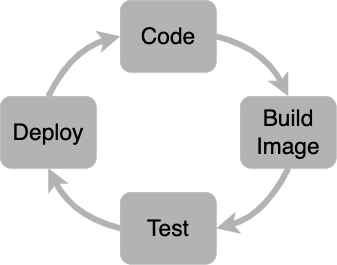
Because our goal is to develop an image, we use Docker to:
- develop locally using the
docker composecommand - build a development image
- scan the image for vulnerabilities
- push the image to an LTC private registry
Once an image is stored in a registry it can be deployed to a Kubernetes cluster. This can be done manually through the Rancher UI, or by configuring a project to deploy automatically using a CI/CD pipeline.
But before we look at CI/CD pipelines in more detail, let's go over other important details about Docker.
Docker
Docker can be used in a few different ways. A nice way to try out an app is to run it using docker instead of installing it.
Running nginx using Docker
- Start Docker
- Open a terminal and run
docker container run -p 8080:80 nginx - Open a browser and navigate to
http://localhost:8080
Dockerfiles
The core configuration file for Docker is the Dockerfile. This file specifies how your app should be built.
The Dockerfile is a sequence of commands that the build engine reads to create everything your app needs to run. The final output of the build engine is an image that can (generally) run on any machine.
Example Dockerfile commands
FROM python

WORKDIR /app

COPY . ./

RUN pip install
For more information about options and best-practices about how to build a Dockerfile, see the Dockerfile reference documentation.
docker compose
When you install docker, the executable includes functionality that creates a local dev environment to simulate how microservices would run in production. The docker compose command reads a docker-compose.yml file and launches containers connected by a virtual network.
See Docker Compose File Basics for a good overview of how docker-compose.yml files work.
Example postgres stack.yml for docker compose
# Use postgres/example user/password credentials
services:

  db:
    image: postgres
    restart: always
    environment:
      POSTGRES_PASSWORD: example

  adminer:
    image: adminer
    restart: always
    ports:
      - 8080:8080
GitHub Codespaces
If the image works as expected locally, the next step is to verify that it can be deployed to a cluster. GitHub Codespaces makes it easy to test whether the image can be deployed using a Helm chart.